
HID Origo portal, administrator activities
In order to authorise the management of readers, the administrator of the Origo portal needs to successfully complete a few steps.
Admin must…
- log in to the Origo administration portal https://portal.origo.hidglobal.com/mobile-identities/#/home and go to the Reader Manager portal from this page by clicking on the Reader Manager button.

- or go directly to https://cloudservices.hidglobal.com/ and log in with the same username and password he uses on the HID Origo management portal https://portal.origo.hidglobal.com/mobile-identities/#/home.
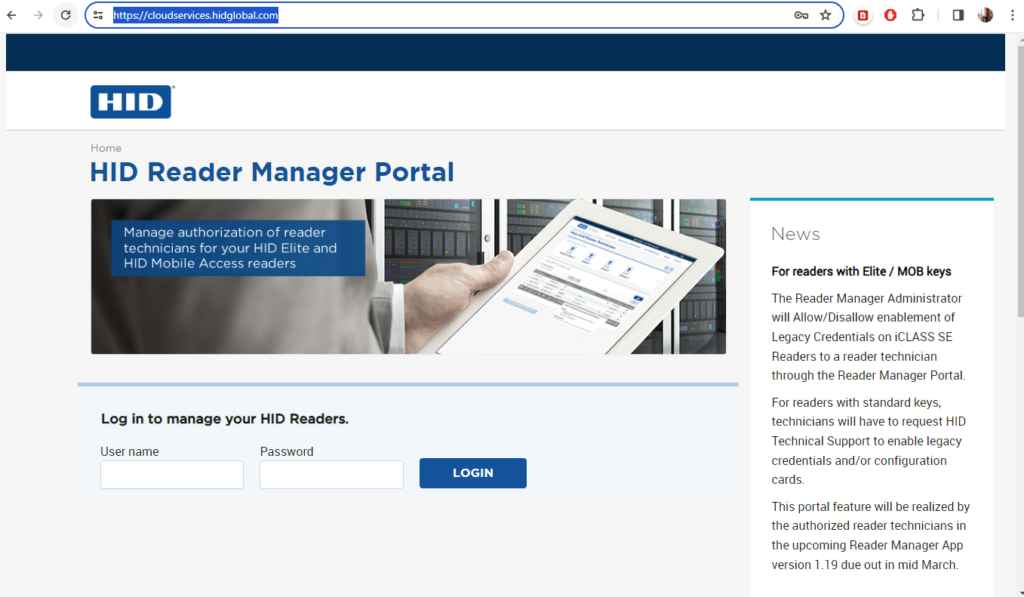
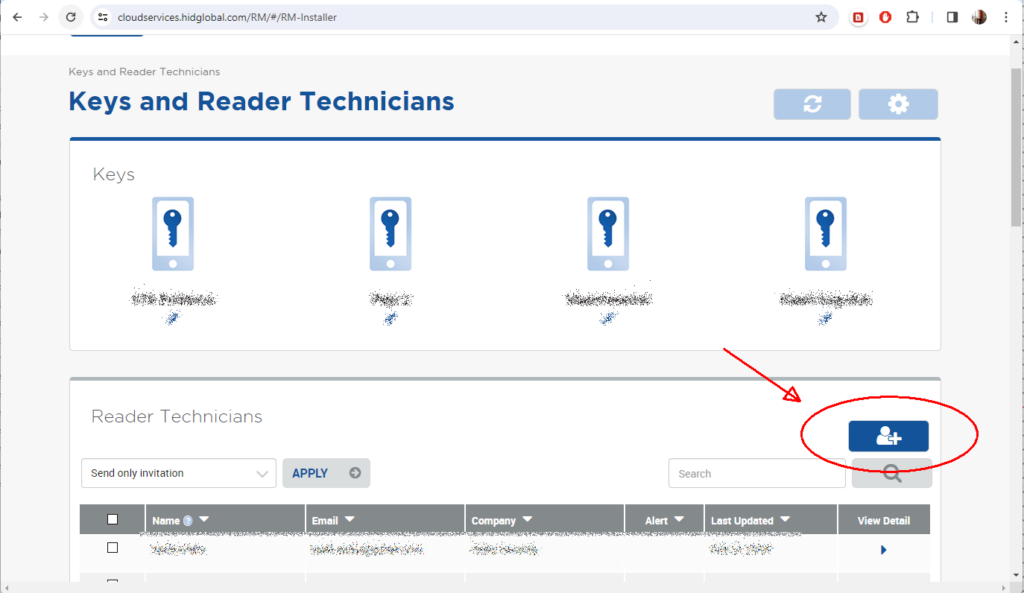
3. click the plus sign button and add a new reader in the system.
4. enter the necessary information (see the Enroll Reader Technician image):
4.1 Technician details. NOTE: Email address: the technician must have the HID Reader Manager application installed on their phone and registered as a user.
4.2 Choice of whether the technician is sent an invitation or is also given the right to manage the readers of the given organisation.
4.3 Choice of which MOB key the technician is allowed to hold and for how long.
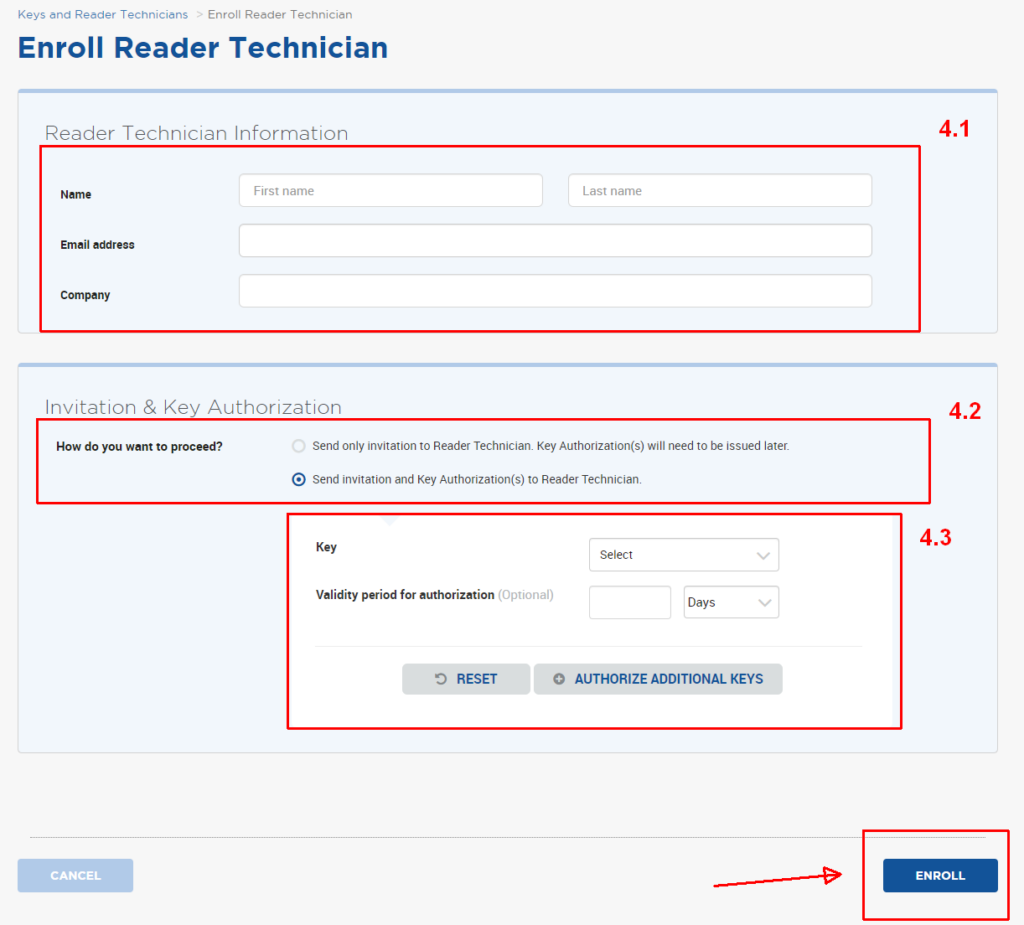
NB: All three options are important and mandatory!
5. Press ENROLL
If successfully added, the technician will see the MOB or ICE key added to their phone under Settings > SHOW AUTHORIZED KEYS in the HID Reader Manager application.
HID Reader Manager
How to make sure in the HID READER MANAGER app that the key is present / the authorisation is valid
- run the application
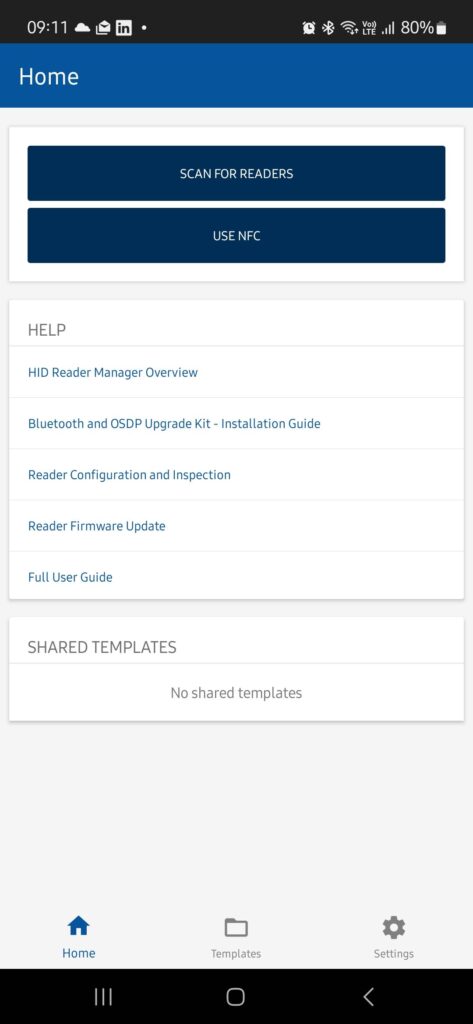
2. press the Settings button
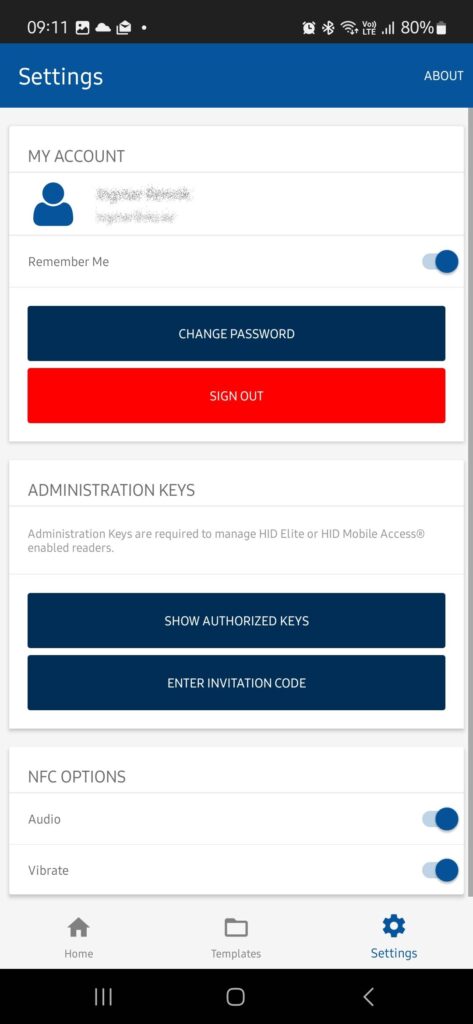
3. Click on the SHOW AUTHORIZED KEYS button.
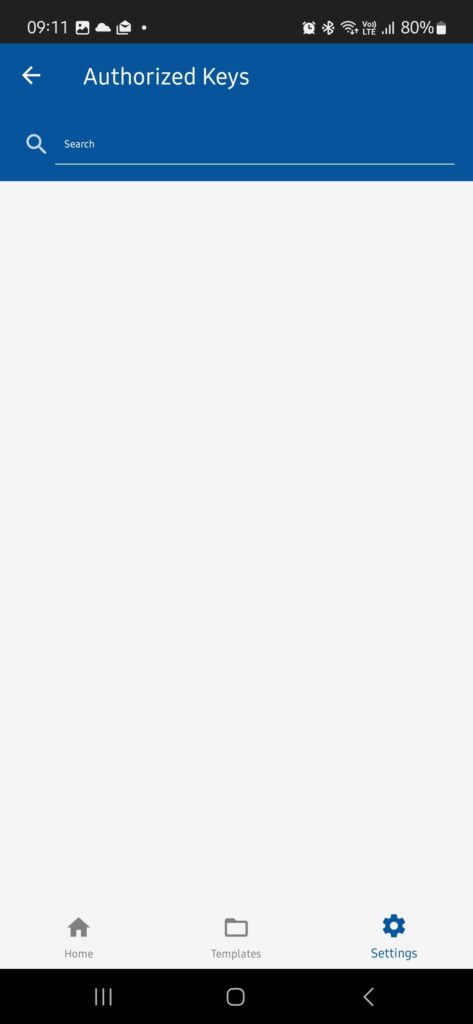
If there are no keys, the list is empty. To update, restart the application.
When a (new) key is added to the list, the installer has the rights to continue to operate with that key (load the key into the reader, change the reader settings, replace the key with another key for which he has been granted rights, etc.).
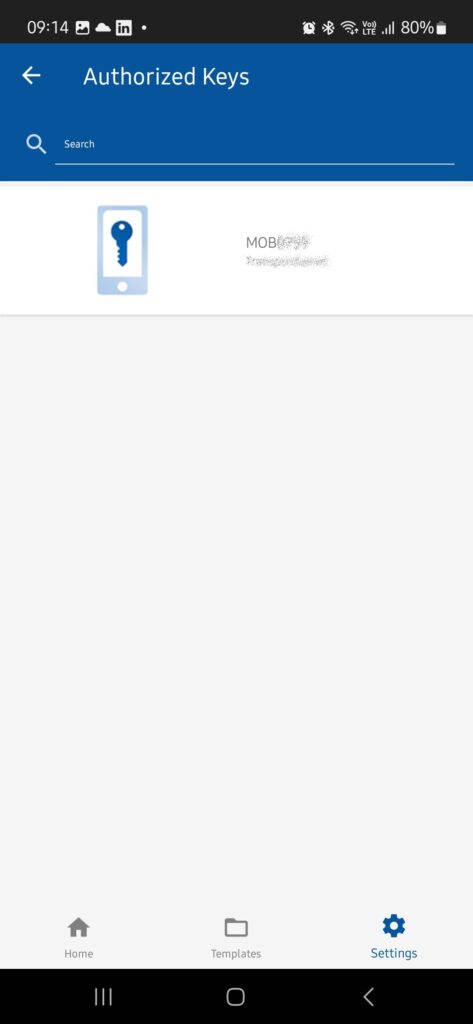
Adding a key to the HID reader
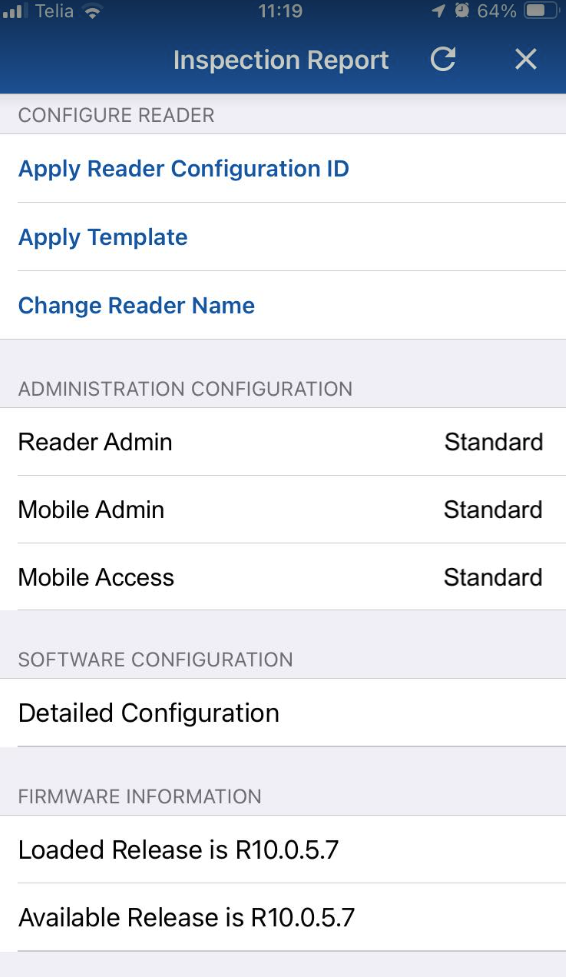
- Select Detailed Configuration from the menu
2. Select Keys from the menu
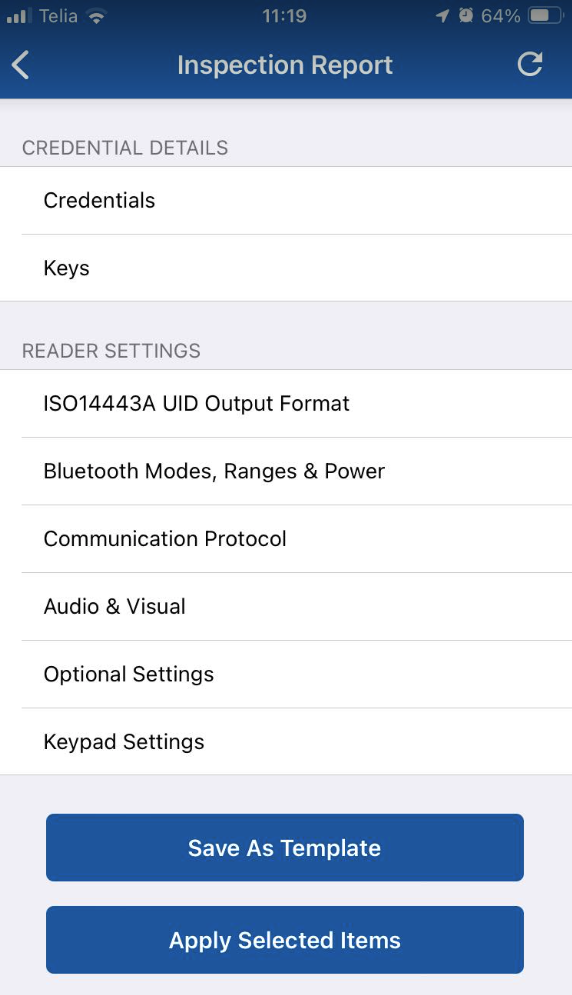
3. Select Add Keys and from the drop-down menu, select the desired key.
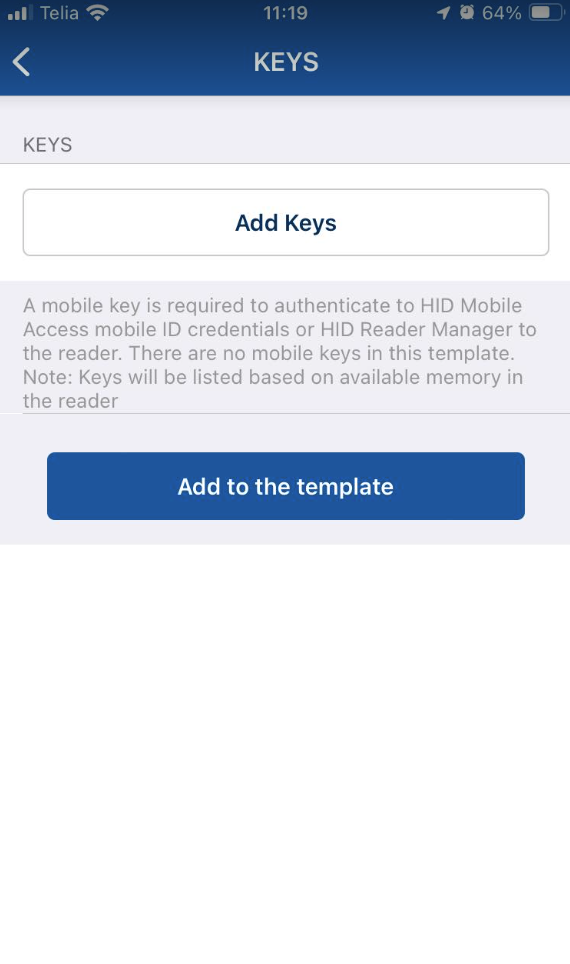
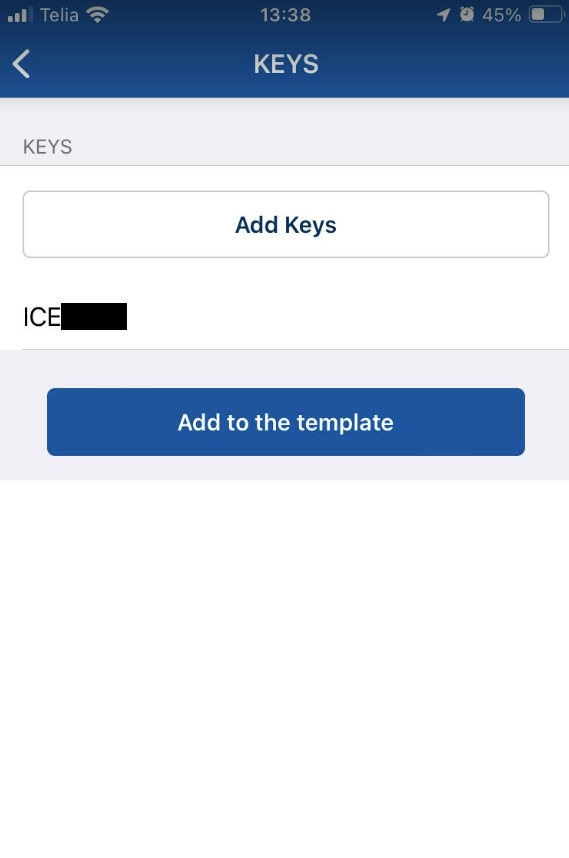
4. You will see your added key. Now click Add to the template to add the key to the reader for sending.
5. You will see that Keys is marked as modified. Click Apply Selected Items to send the key to the reader. The key will be uploaded to the reader. Wait for the procedure to finish
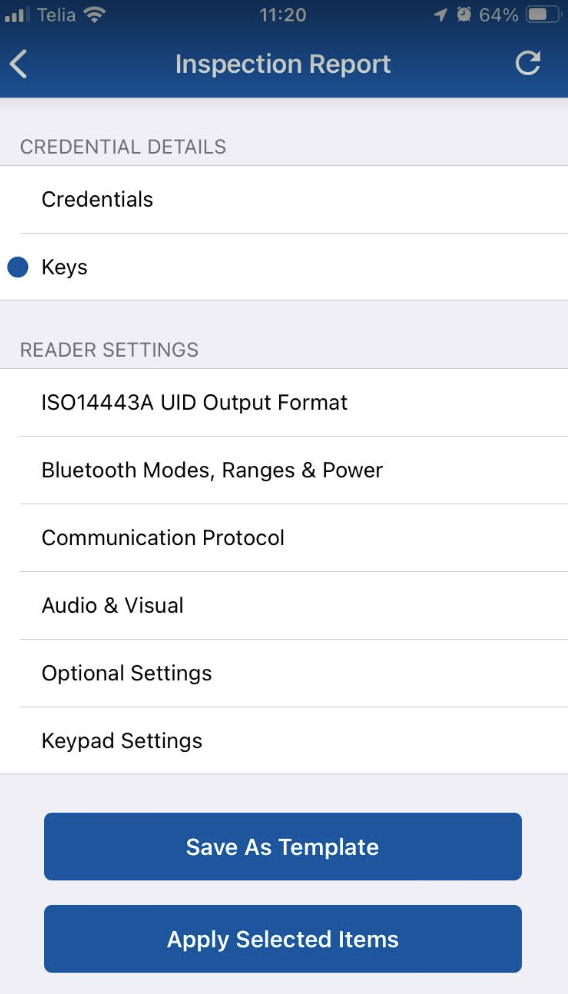
6. Once the key has finished loading, go back to the main page by clicking on < and refresh the page (there is a refresh button on the top right). After that you will see that Reader Admin, Mobile Admin and Mobile Access have received their key.